Guide
Run SPCAF via PowerShell
To Run SPCAF in PowerShell either edit and use the supplied example script or create your own to suit your needs.
File | Description |
|---|---|
Rencore.Code.SPCAF.PowerShell.CmdLet.dll | SPCAF Self-Contained PowerShell Module |
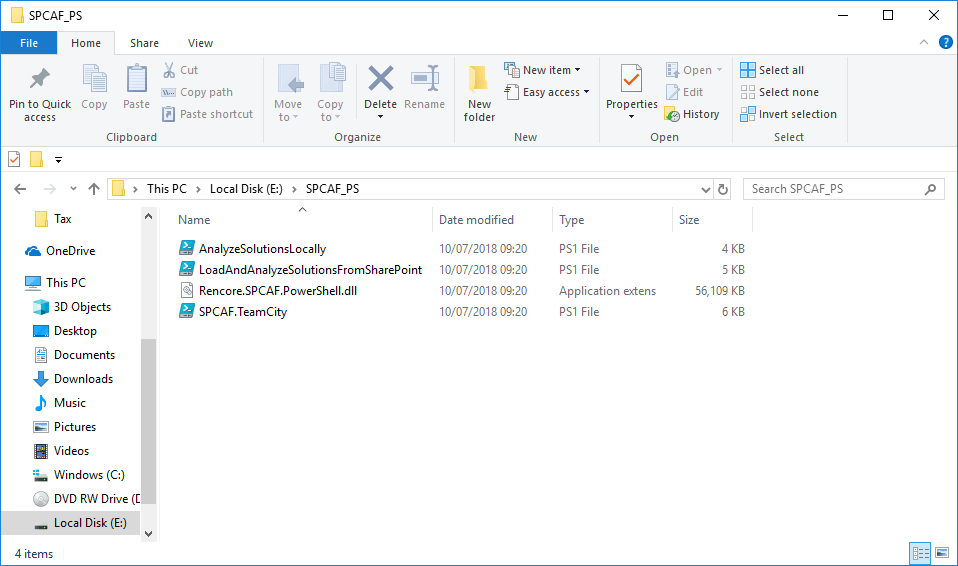
AnalyzeSolutionsLocally.ps1 | Sample PowerShell script which analyzes a given set of WSPs locally with SPCAF (without SharePoint installed). |
LoadAndAnalyzeSolutionsFromSharePoint.ps1 | Sample PowerShell script which downloads all full trust solutions from the local SharePoint farm and analyzes them with SPCAF |
Install SPCAF for PowerShell
To run SPCAF in PowerShell, first download the integrations zip. Open the downloaded Rencore.Code.SPCAF.Integrations.<version>.zip, click Integrations and PowerShell, and extract the contents to the folder destination of your choice.
Run analysis from PowerShell
The SPCAF PowerShell Module can be run on any machine with support for .NET 4.0 and at least PowerShell v2.0. The supplied script also requires a SharePoint Farm to be deployed locally, however, it is easily modifiable to work remotely.
Run free analysis without an SPCAF license
If you have no SPCAF license, SPCAF creates at least a summary report (format HTML) of the analysis that highlights the main issues and shows the code metrics in charts.
Run analysis with SPCAF license
If you have a valid SPCAF Quality Gate/SPCAF Farm Protection license copy the .lic file to the folder with the PowerShell cmdlet (Rencore.Code.SPCAF.PowerShell.CmdLet.dll) or provide the path to the .lic file in the cmdlet argument “LicenseFiles”.
Command Line Parameters
Parameter | Value | Mandatory | Description |
|---|---|---|---|
InputFiles | String Array | Yes | List of input files or directories for the analysis. Supported formats: .wsp, .app, .dll, .exe, .zip |
LicenseFiles | String Array | No | Optional path to SPCAF license files. If no license file is given only the free features are activated. |
SettingsFile | String | No | Optional name or path to the settings files (.spruleset) which defines the analyzers for the analysis. |
Reports | String Array | No | List of report formats that should be generated during the analysis. Possible values: .html, .pdf, . docx, .xml, .csv, dgml. |
OutputFile | String | No | Optional path of the output file. The reports will be written to the same location as the output file in the various formats. |
Verbosity | String | No | Optional level for verbosity to limit the detail levels for log messages. Valid values are: quiet|minimal|nomal|debug - Default: normal. |
TempDirectory | String | No | Optional path to the temp folder. |
SkipPorjectCreation | Boolean | No | Optional Boolean. If True no project (.spcaf) file is created as an output of the analysis. - Default: FALSE. |
TimeOut | Integer | No | Optional seconds after the analysis should be canceled automatically. |
Code sample
Import-Module "x:\spcaf\Rencore.Code.SPCAF.PowerShell.CmdLet.dll"
$params = @{
InputFiles = @("x:\spcaf")
OutputFile = "x:\spcaf\SPCAF-Report.html"
Reports = @("HTML")
LicenseFiles = @("x:\spcaf\pro.lic")
Timeout = 0 #Infinite timeout
LogFile = "x:\spcaf\SPCAF.log"
};
Invoke-SPCAFCodeAnalysis @params