Guide
Analyze with the SPCAF Client
SPCAF comes with a client application that can be used to run an analysis of WSP files or apps.
The client application is an alternative to analysis in Visual Studio e.g. if the source code of the project is not available or if the user is not familiar with Visual Studio.
The client application can be started from the start menu “SharePoint Code Analysis (SPCAF)”. The following screenshot shows the start screen of the client application.
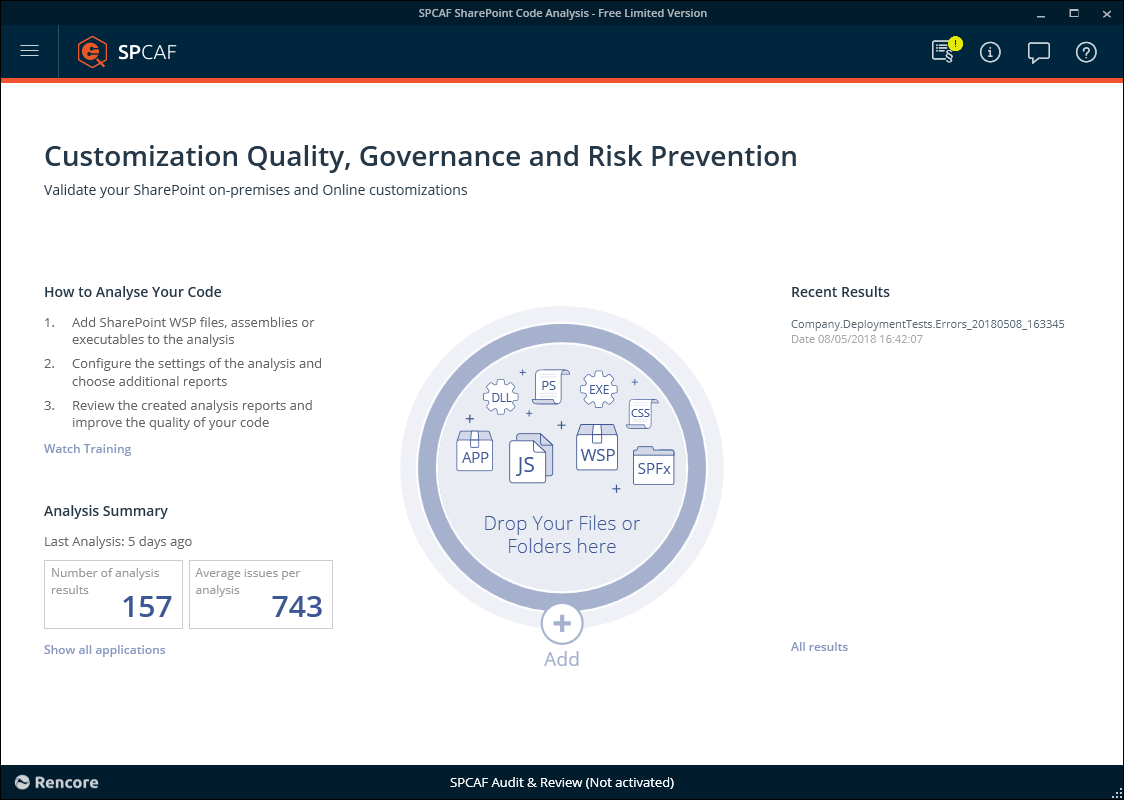
The following functions are available:
Function | Description |
|---|---|
Home | Brings you back to the start. |
New | Start a new analysis. |
Open | Opens a previously saved performed analysis from the file system. |
Start Analysis | Drag your associated files into the center of the circle or add files by clicking the + button. |
Recent Results | Opens a recent analysis, performed on the current machine. |
Configure the Analysis
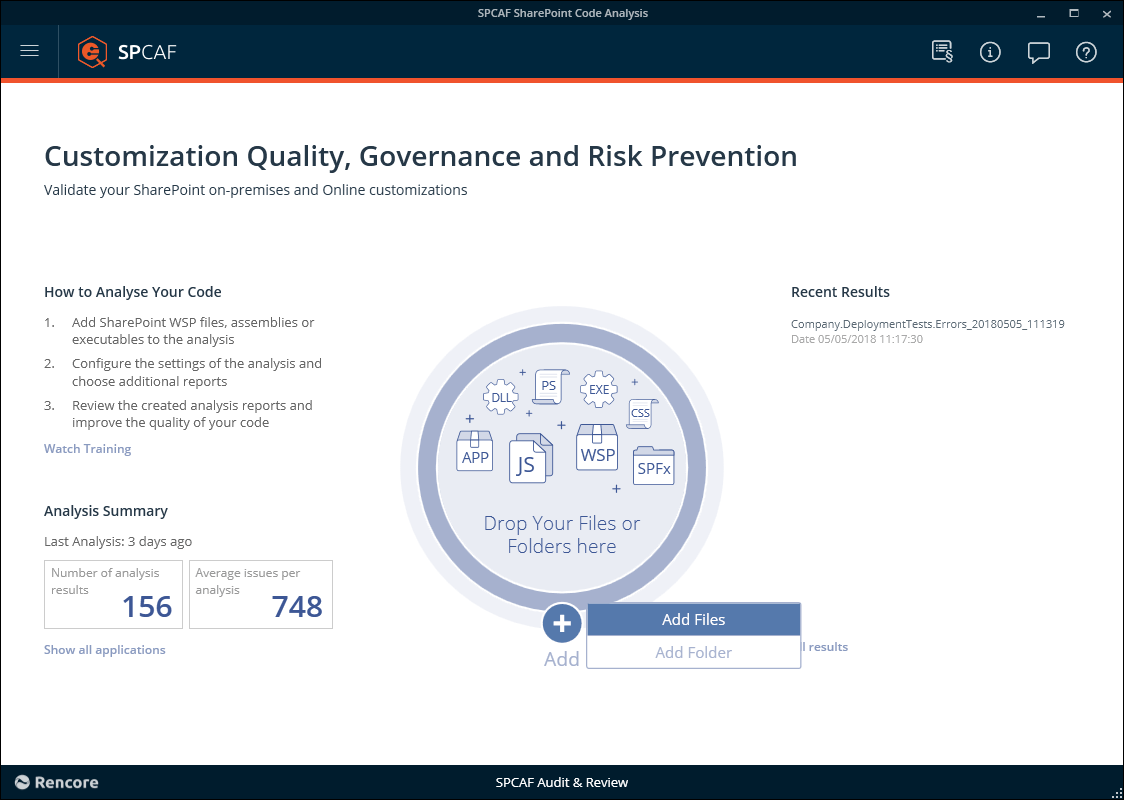
To run a SharePoint code analysis, either drag your files or folders into the circle or click the ”+” button and choose “Add Files” or “Add Folders” to select them from the file system.
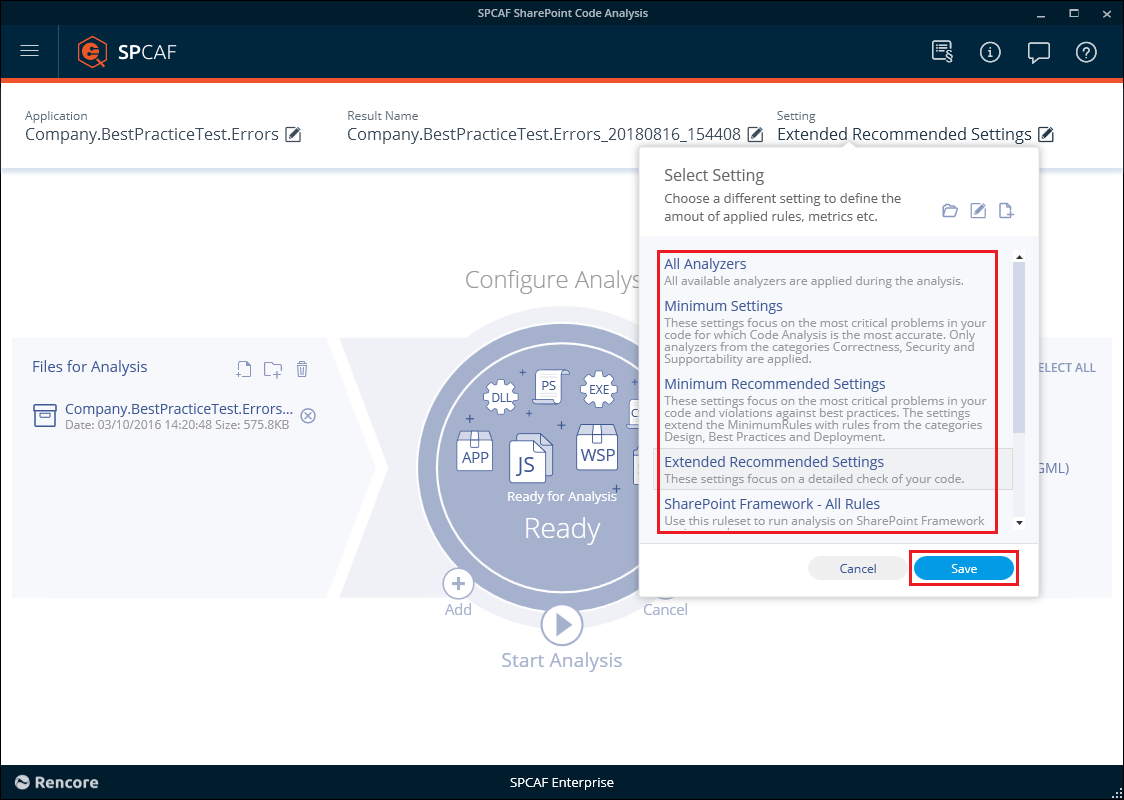
The next screen permits you to choose the output type of the report which can be PDF, DOCx, and VS Dependency Graph, and tag the outputs you desire. Clicking on the settings allows you to choose from one of the pre-set Analysis Rulesets or load a custom one.
Start the Analysis
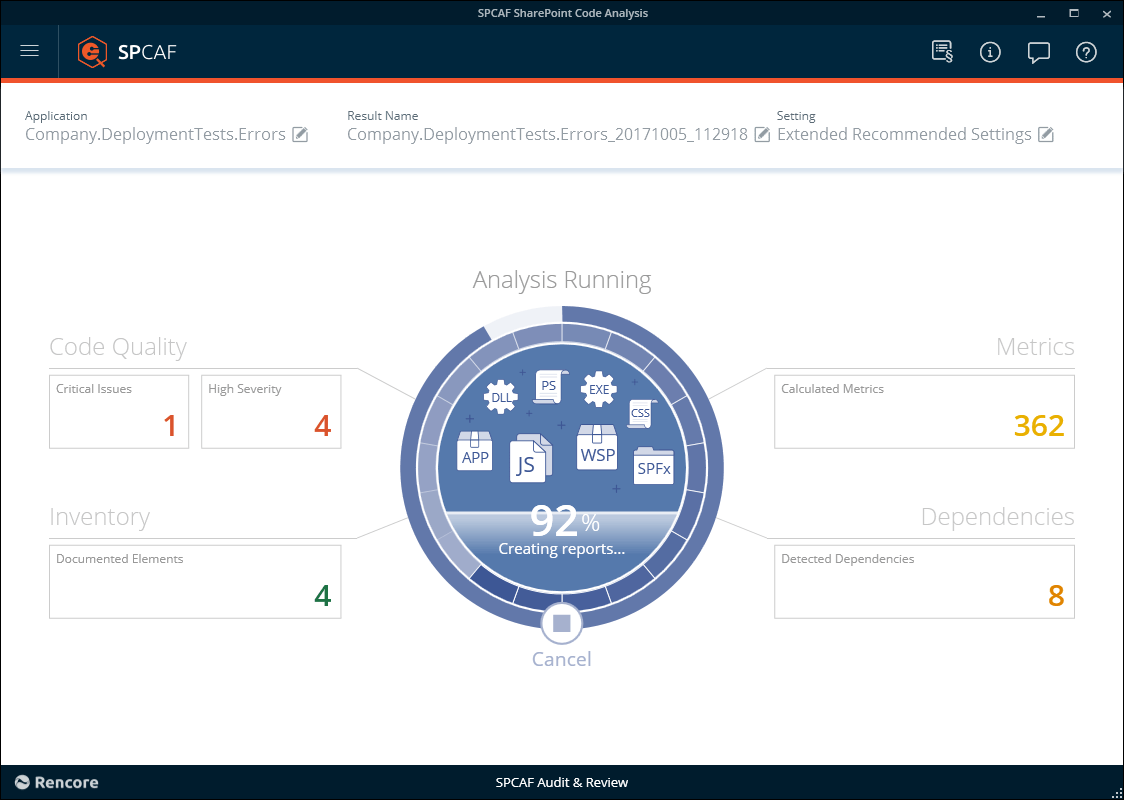
After you have started the analysis, SPCAF will extract all information from your solutions or apps and displays the progress.
Navigate Results
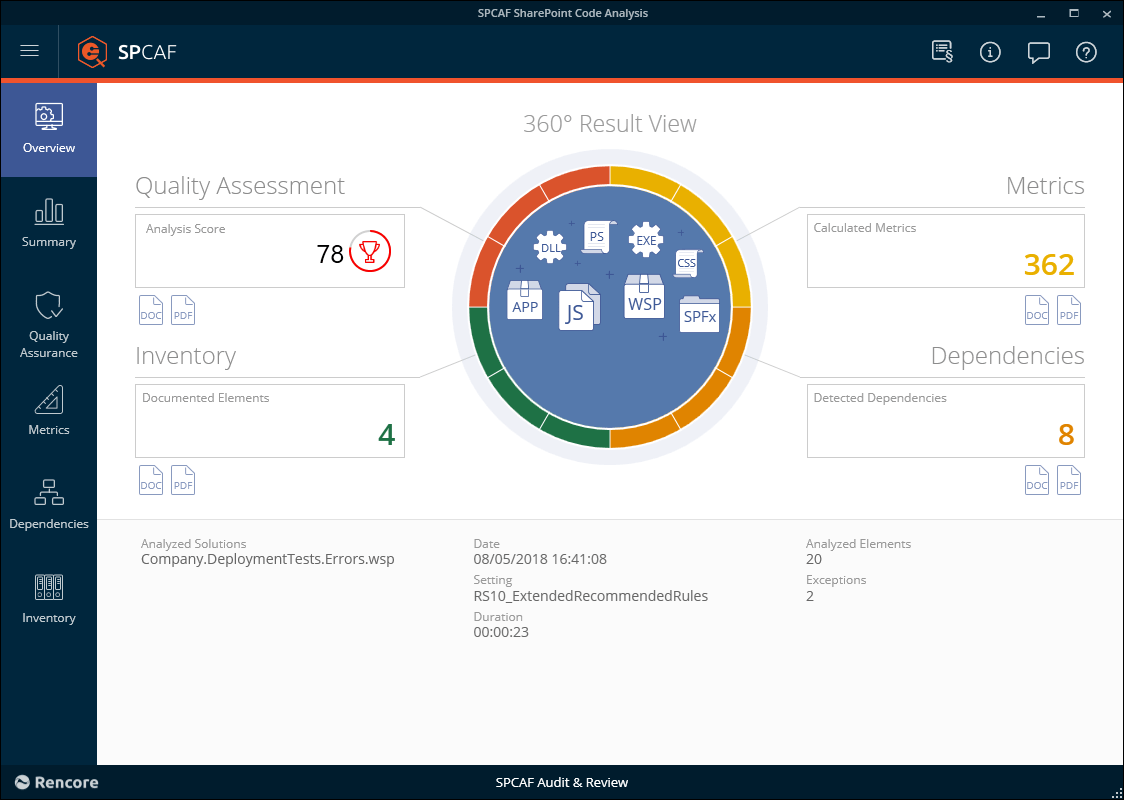
After the analysis has finished, you will see a summary page from which you can navigate to the different reports and download the specific types of reports that have been configured in the analysis settings. (e.g. DOCX, PDF, VS Dependency Graph)
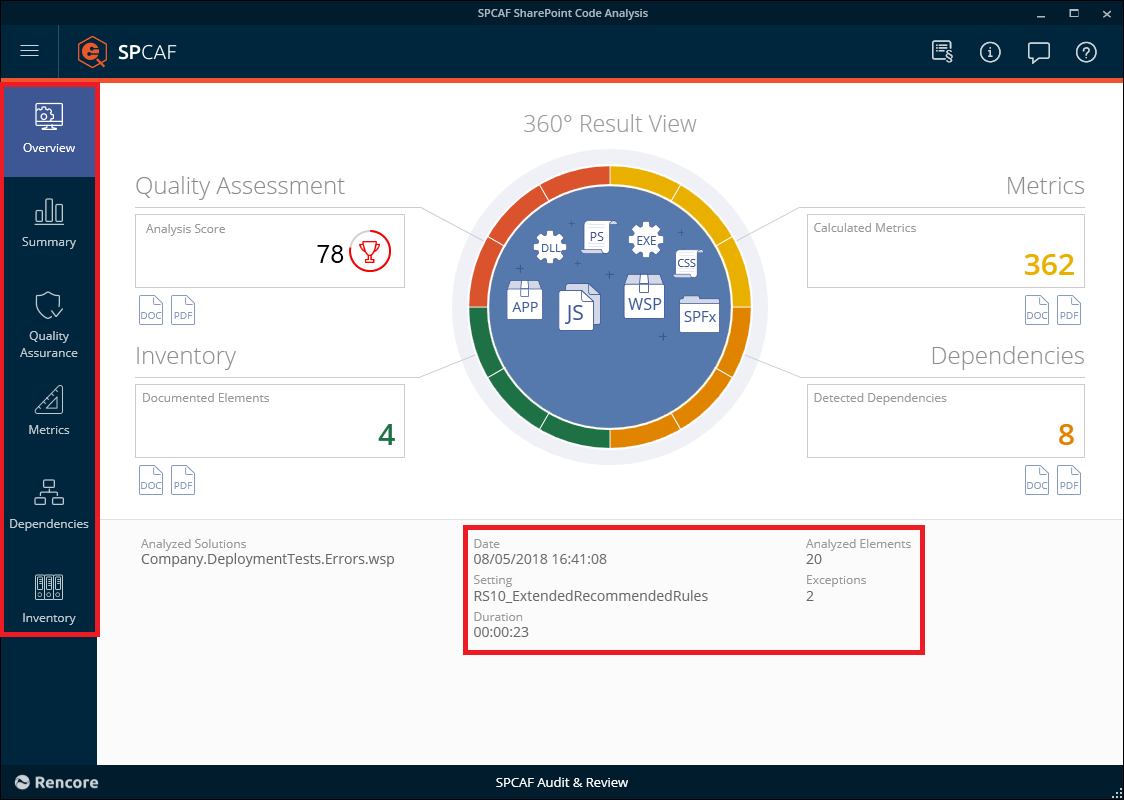
On the left, you can navigate between the different available reports. At the bottom of this screen, you will see the following details: Analyzed solution(s), date and time of analysis, settings, duration as well as the number of analyzed elements and exceptions.
Review Results
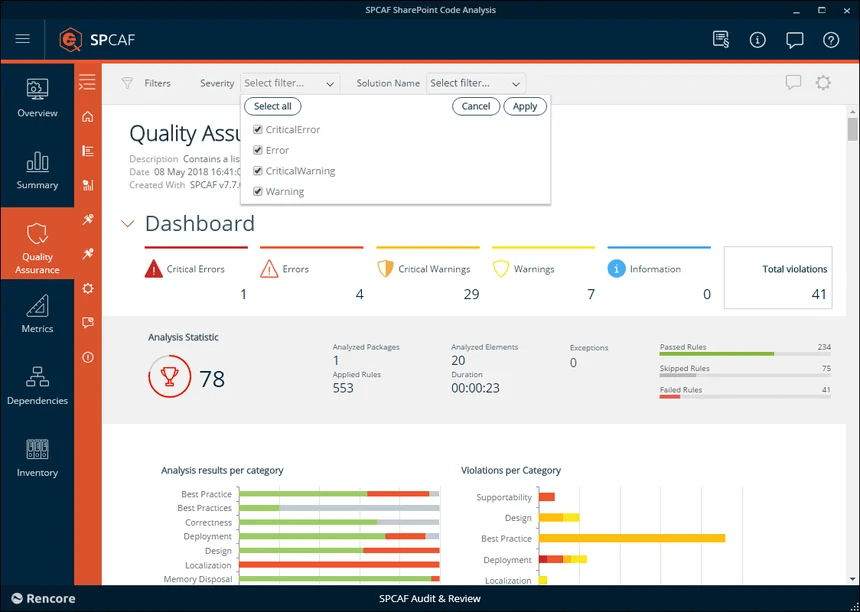
After selecting a report, the left-hand navigation guides you between the main sections.
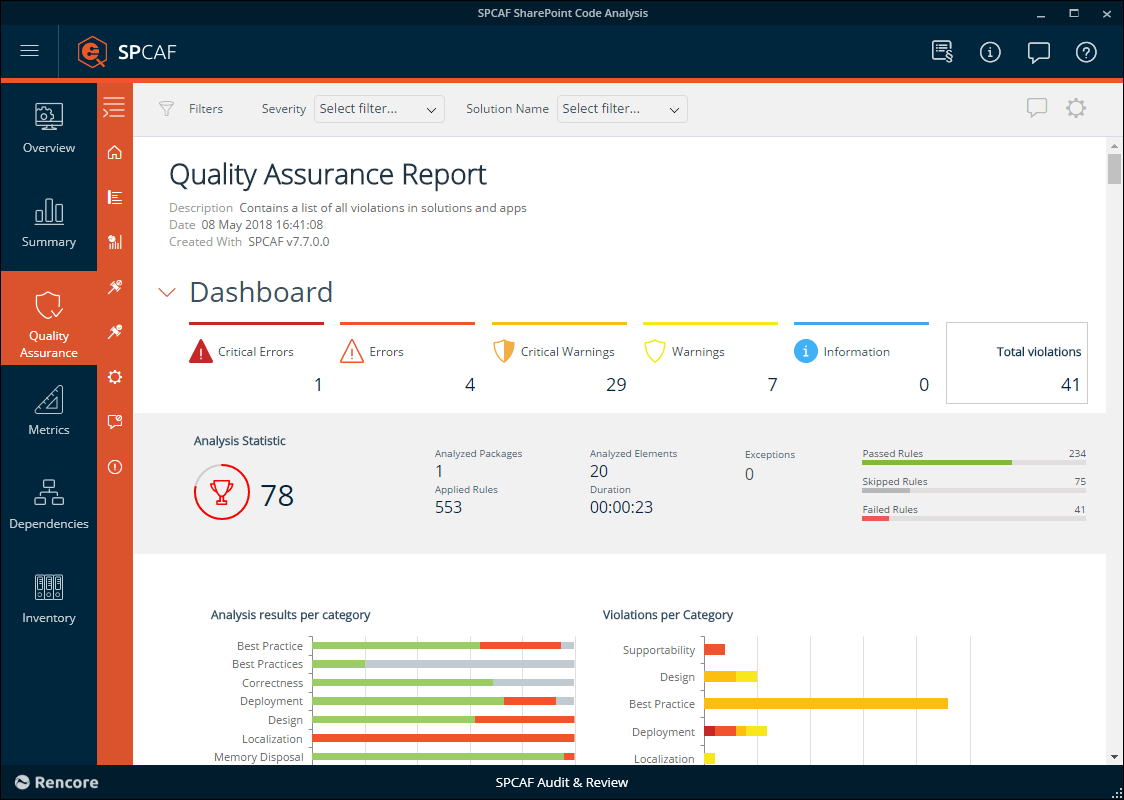
At the top of each report, you can filter the results by the analyzed file, the violation severity, or a specific package element.
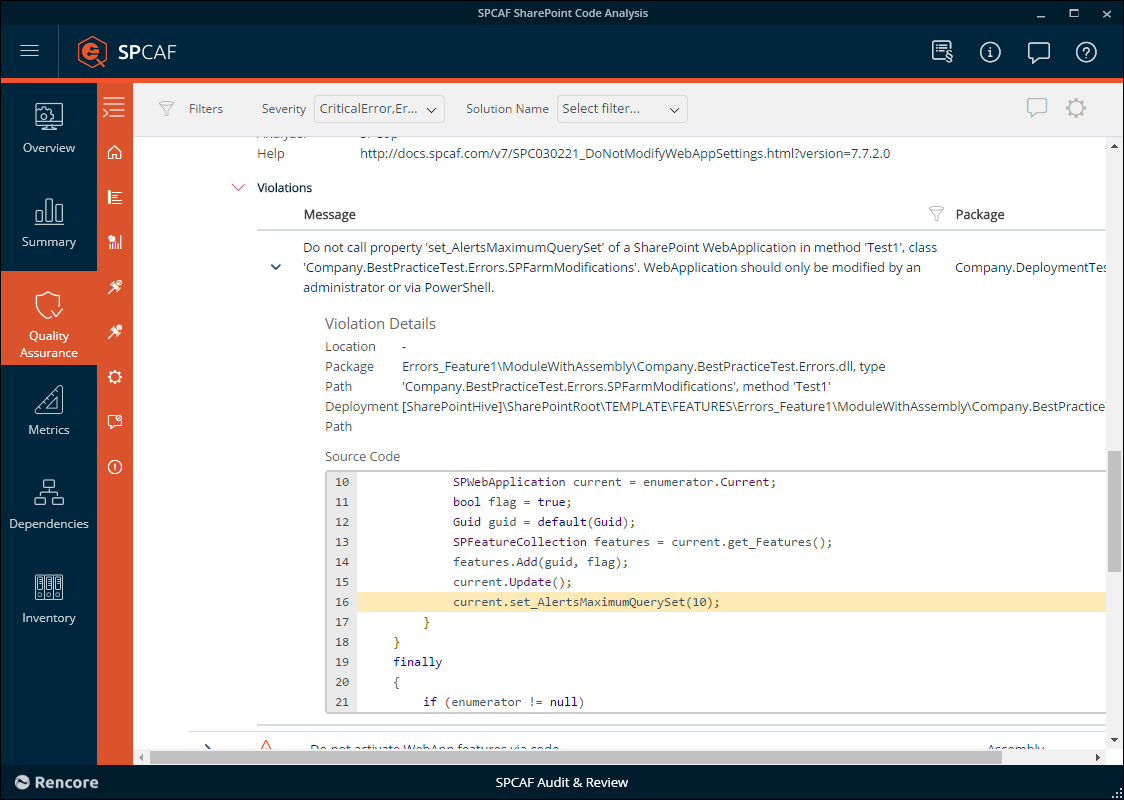
Each violation can be expanded to see the affected source code.