Guide
Run SPCAF from Command Line
All tools (code check, dependency analysis, metrics analysis, and inventory) can be executed separately on the command line. SPCAF comes with the following command line tools:
Command line tool | Description |
|---|---|
spcop.exe | Rule Check |
spmetrics.exe | Metrics Analysis |
spinventory.exe | Inventory Analysis |
spdepend.exe | Dependency Analysis |
spcaf.exe | All Analysis types |
Run analysis on command line
The command line tools can be found in the installation directory of SPCAF (typically ‘C:\Program Files (x86)\SPCAF\’). Open the command prompt and switch to the SPCAF installation directory. Running one of the command line tools without arguments shows the following information:
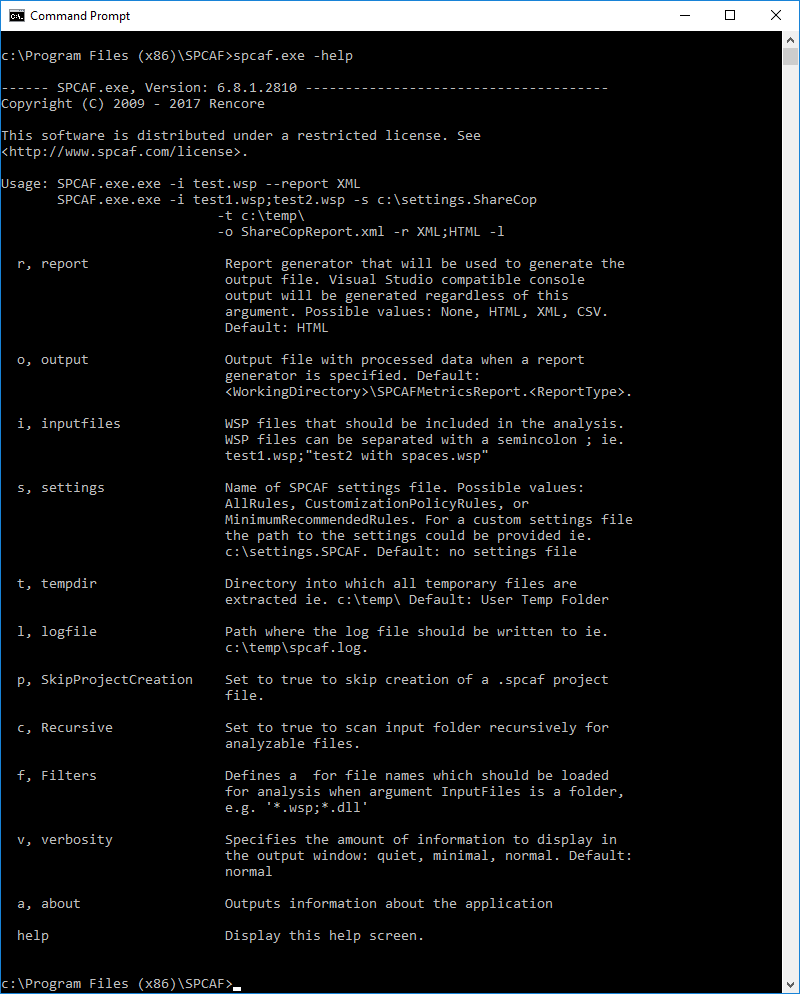
Start one of the command line tools with the following arguments:
Argument | Name | Description |
|---|---|---|
-r | report | Report generator that will be used to generate the output file. Visual Studio compatible console output will be generated regardless of this argument. - Possible values: None, .html, .xml, .csv. - Default: .html |
-o | output | Output file with processed data when a report generator is specified. - Default: [Working Directory]\SPCAFMetricsReport.[Report Type] |
-i | inputfiles | Required. Location of files to be included in the analysis. Files can be separated by a semicolon(;). If the file path or name has spaces in you must place it in quotes (""). - Sample: test1.wsp; "test2 with spaces.wsp" |
-f | filters | List of regular expressions, separated by a semicolon which is applied as filters for the input files. Helpful if argument input files is a directory. Only the input files which match the filter are analyzed. - Sample: *.wsp, *.dll |
-s | settings | Name of SPCAF ruleset file. Possible ruleset files are stored in the installation folder of SPCAF, folder "Rulesets". For a custom settings file, the path to the settings could be provided. e.g. c:\settings_files\settings1.SPCAF. - Default: No Settings file. |
-t | tempdir | Directory into which all temporary files are extract. - Sample: c:\temp\ - Default: User Temp Folder |
-l | logfile | The path where the log file should be written to: - Sample: c:\temp\spcaf.log - Default: Configured value in log4net.config file. |
-v | verbosity | Specifies the amount of information to display in the output window: - Quiet: No Output. - Minimal: Only notifications are listed (typically used in automated builds). - Normal: Notifications and status information are listed. This is the default setting. - Debug: Notifications, status information, and errors are listed. |
-c | recursive | Set to true to scan the input folder recursively for analyzable files. - This is to be used if you have files in subfolders. |
-p | skipprojectcreation | Set to true to skip the creation of a .spcaf project file. |
-help | help | Displays the help screen. |
-a | about | Displays information about the software. |
Sample
The following command runs a code check for all WSP files in folder ‘C:\wspfiles’ and will create in directory ‘C:\outputdir\’ the 2 reports ‘outputfilename.html’ and ‘outputfilename.xml’.
<em><strong> spcaf.exe -i "C:\wspfiles" -r "HTML;XML" -o "C:\outputdir\outputfilename.html"</strong></em>Output Sample